Follow the app by tab, with metric details where they matter.
Use the main SwoLifts tabs as your path through the app. Each section explains what to do first, then shows how SwoLifts tracks the data behind the screen.
Workout tab
Start and Log a Workout
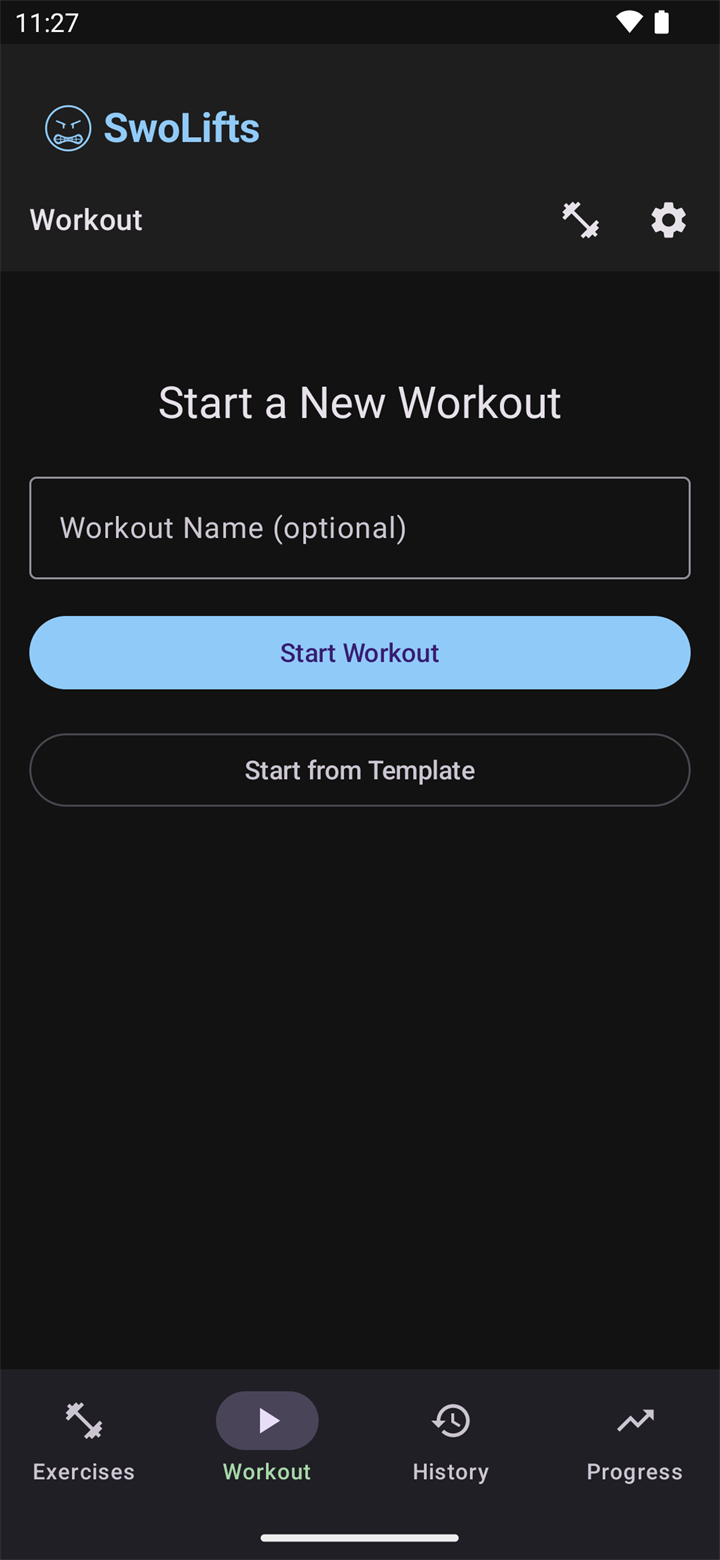
The Workout tab is where you start from scratch, continue an active workout, or build from a saved template.
What you do
Open the Workout tab.
Start an empty workout or choose a saved template.
Add exercises, then enter reps, weight, duration, distance, or assistance depending on the exercise.
Select Add note on a set to record an optional cue, observation, or reminder. You can edit or clear it later, including from workout history.
Use the rest timer between sets if it helps your pacing.
Tap Finish Workout when the session is complete.
Workout tab: start, resume, or build from templates.
How SwoLifts tracks it
Set data auto-saves while you type. A set timestamp is captured when the set becomes complete, which lets SwoLifts build workout duration, history, and progress metrics without a separate save step.
Optional set notes are saved with their set and included in SwoLifts ZIP exports.
Weight and reps exercises need both values before the set counts as complete.
Bodyweight-only exercises need reps.
Duration exercises need duration; distance-based cardio needs duration and distance.
Empty fields do not count as zero. Enter 0 only when you intentionally mean zero.
Exercises tab
Find, Filter, and Create Exercises
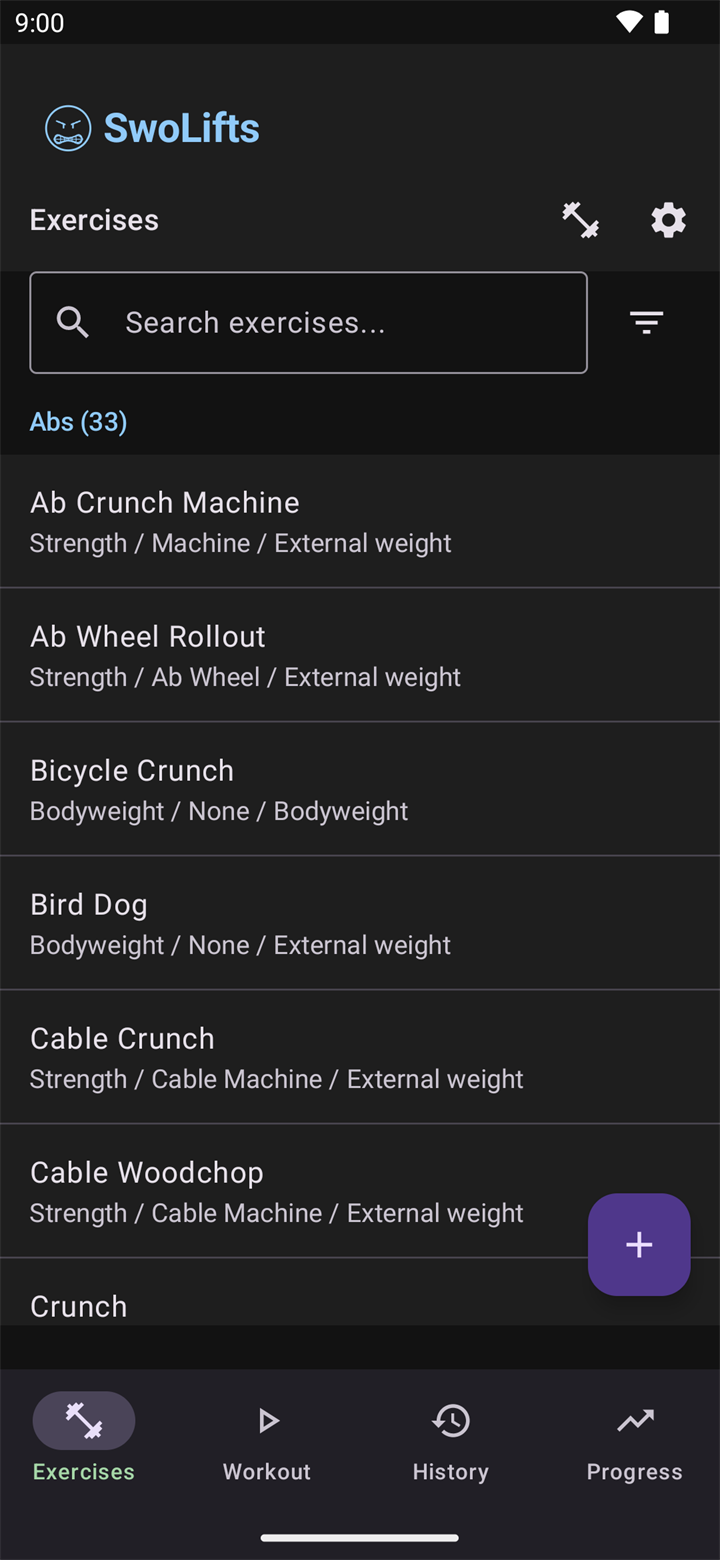
The Exercises tab is the library behind your workouts. Search by name, muscle group, equipment, category, load type, or custom exercises.
What you do
Open the Exercises tab.
Search or filter until you find the movement you need.
Use the add button to create a custom exercise when the library does not have the exact movement.
Choose the correct load type so workout volume and progress charts are calculated correctly.
Exercises tab: search, filter, and manage custom exercises.
Exercise Load Types
SwoLifts uses load types to understand what the weight field means for each exercise.
External Weight
The entered load is the exercise weight. Examples: bench press, squat, deadlift, dumbbell curl, machine row, and cable stack movements.
Bodyweight
The load is your bodyweight. Examples: push-ups, bodyweight squats, and unweighted pull-ups.
Weighted Bodyweight
The load is your bodyweight plus added weight. Examples: weighted dips, weighted pull-ups, and weighted chin-ups.
Assisted Bodyweight
The load is your bodyweight minus assistance. Examples: assisted pull-ups, assisted chin-ups, and assisted dips.
How SwoLifts calculates volume
External weight: entered weight multiplied by reps.
Bodyweight: bodyweight multiplied by reps.
Weighted bodyweight: bodyweight plus added weight, multiplied by reps.
Assisted bodyweight: bodyweight minus assistance, multiplied by reps.
History tab
Review and Edit Past Workouts
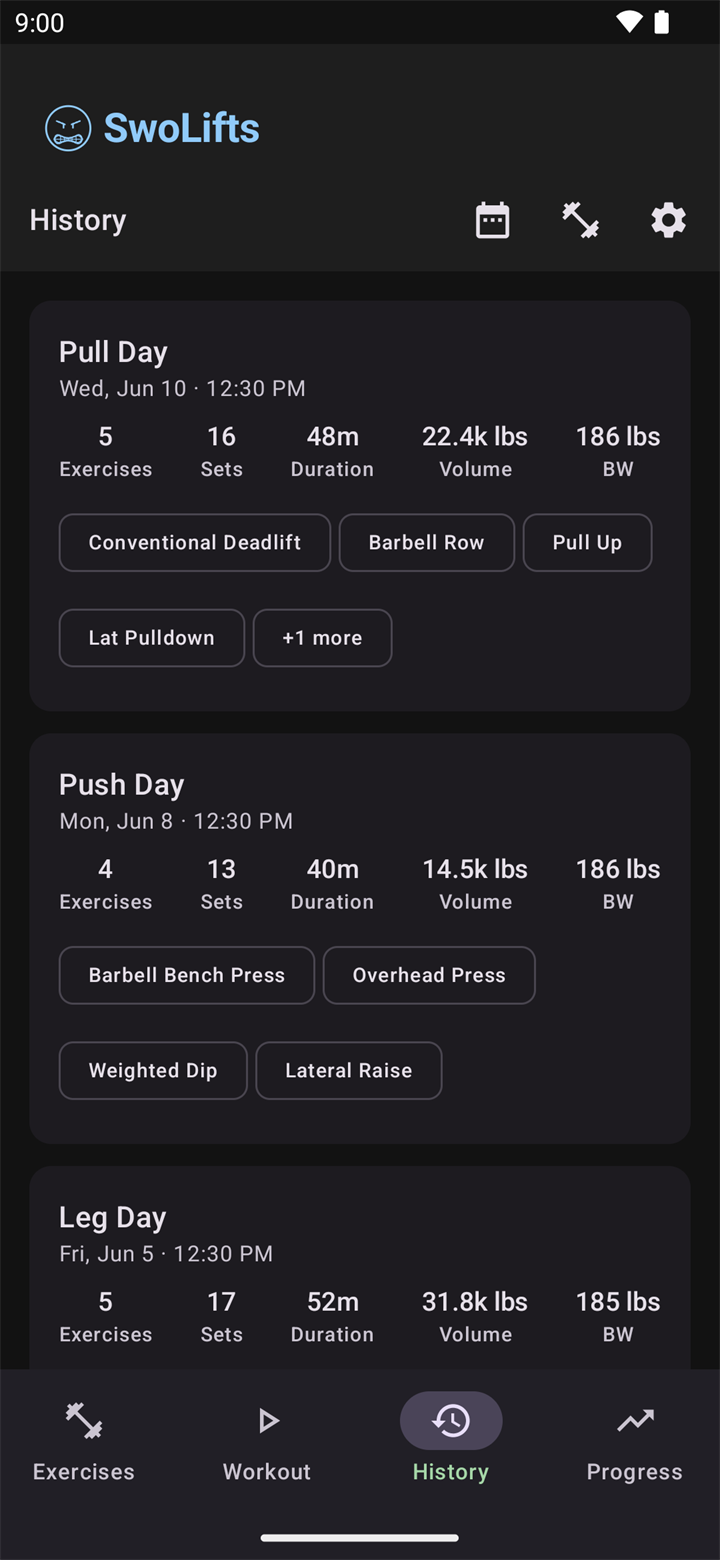
The History tab shows completed workouts in list and calendar views. Open any session to review or correct it.
What you do
Open the History tab.
Switch between list and calendar views depending on how you want to browse.
Tap a workout to review exercises, sets, start time, end time, and bodyweight snapshot.
Edit past sessions when you need to fix a missed set, wrong weight, or incorrect time.
History tab: browse completed sessions and open details.
How SwoLifts uses history data
Completed workouts power the Progress tab. Edits to past sessions update charts, PRs, bodyweight trends, and volume totals automatically.
Progress tab
Understand Your Charts and Records
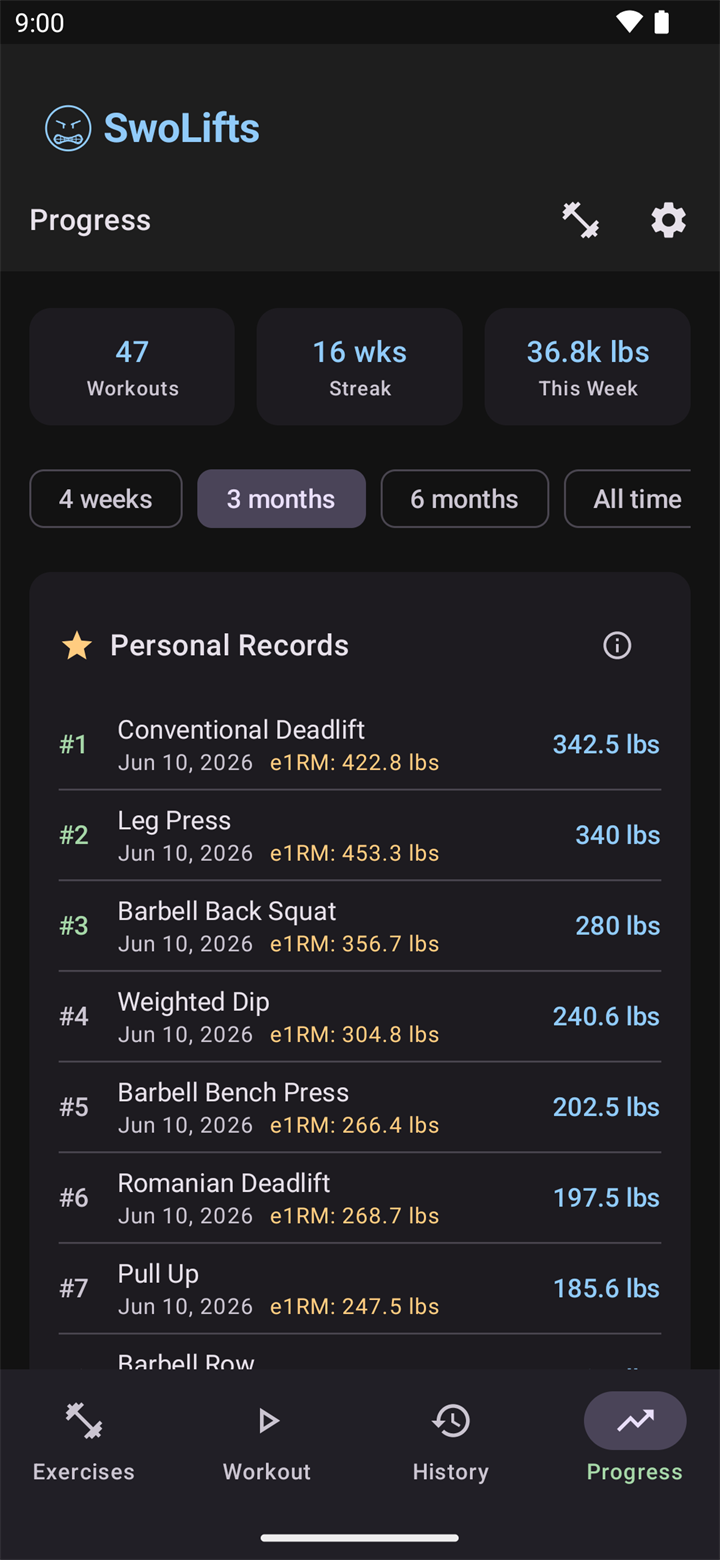
The Progress tab turns completed workout data into trends, personal records, and summary stats.
What you do
Open the Progress tab.
Review your workout totals, streak, and weekly activity.
Select an exercise to view chart modes such as max weight, volume, and estimated 1RM.
Use time ranges to focus on recent training or long-term progress.
Progress tab: charts, records, and training trends.
Metric meanings
Max Weight shows the heaviest completed set for the selected exercise over time.
Volume totals load multiplied by reps, using each exercise's load type.
Estimated 1RM estimates one-rep max from completed sets and can use RIR when effort tracking is enabled.
Personal Records come from completed workout history, not unfinished workouts.
Bodyweight uses the bodyweight snapshot saved with each workout.
Settings
Set Units, Effort Tracking, and Backups
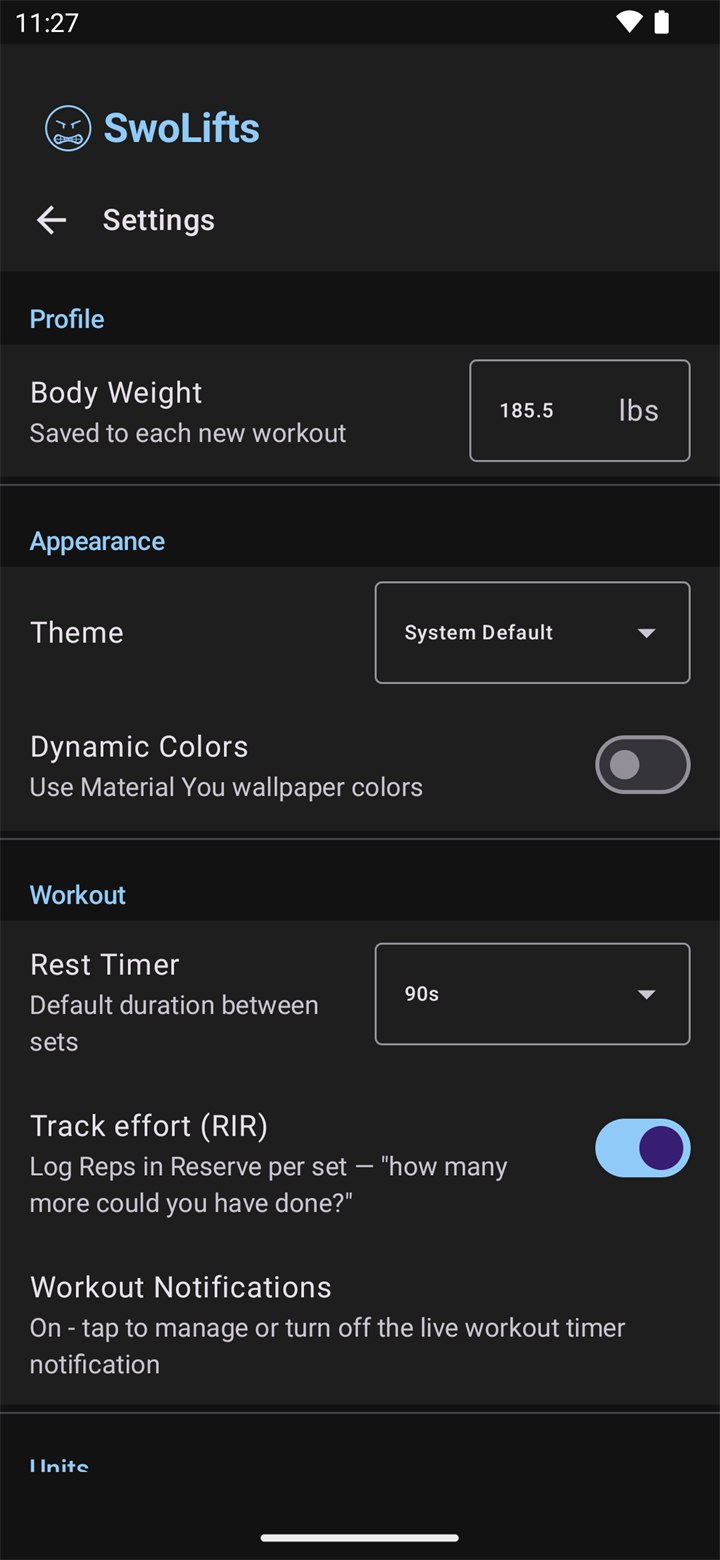
Settings are available from the gear icon. These choices affect how workouts are logged, displayed, and exported.
What you do
Choose your preferred weight unit.
Save your bodyweight if you want bodyweight and assisted movements to calculate volume more accurately.
Turn on RIR tracking if you want to record reps in reserve for strength estimates.
Export or import your workout data when backing up or moving devices.
Settings: units, bodyweight, RIR, notifications, and data tools.
Import and export notes
Exports include workout timestamps, exercise load types, assistance weight, and template assistance targets when those fields are present. Imports preserve those fields when restoring or merging a SwoLifts backup. For CSV templates and a desktop migration walkthrough, see the Import & Export Guide.